
Pharos Space
The Pharos Space driver allows you to control or receive feedback from a Space in the Pharos Expert product. It allows you to:
- Activate Scenes (or off) within an Expert controller.
- Set the Master Intensity level for a space within the Expert controller.
In order to use the driver, the Control4 project must include a Pharos Controller driver to facilitate communication with the controller.
Exposed Proxy
This driver exposes the Space master intensity via a Light v2 Proxy.
Exposed Variables
The driver exposes variables:
- Brightness Percent - returns the Expert Space Master value in percent.
- Active Scene Name - returns the name of the active Expert Scene
- Active Scene Number - returns the number of the active Expert Scene
Linking the Controller to the Space Driver
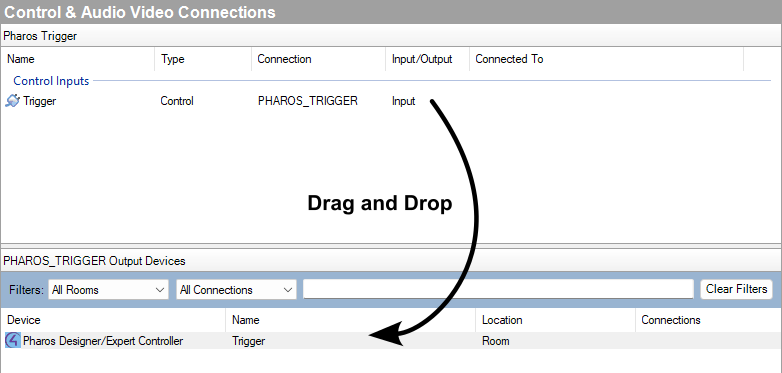
Once you have added a controller and the space driver, they must be linked.
In Composer Pro, navigate to the Connections tab, select the space driver and drag and drop the input on to
the output:
Properties and Actions
In the System Design tab, configure the driver with the Expert Space number you wish to control:
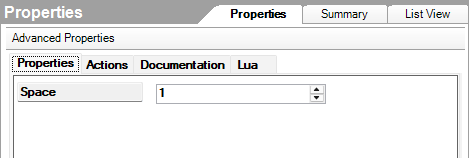
Once configured, navigate to the Actions tab and press the Query Scenes button to retrieve the available scenes from the Expert controller.
Activating Scenes
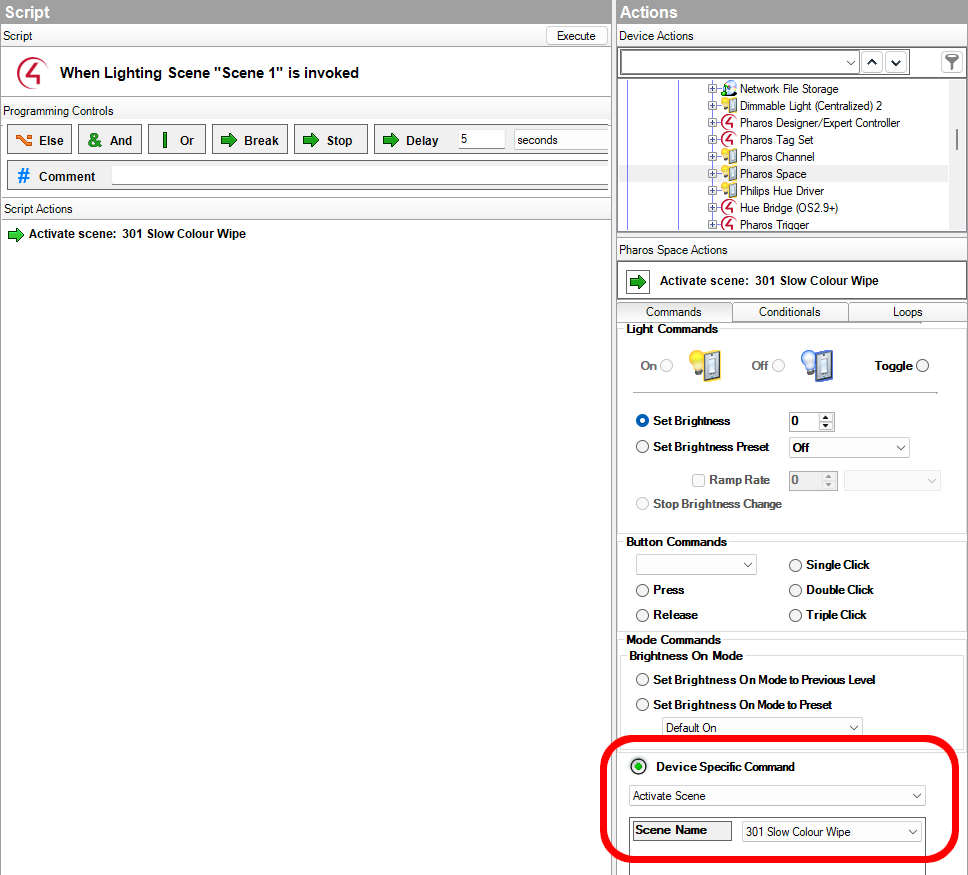
Once the available scenes have been successfully queried, you can add activation of scenes as Actions in the Programming tab of Composer Pro.
Note that scene activation is available as a "Device Specific Command".
Reacting to Scene Activation
You can react to changes of the active scene in a space by selecting Pharos Space in the Device Events pane of the Programming view. You can then script actions in response to the active scene changing.
Setting Space Intensity Master
You can use the Set Brightness action from the Pharos Space driver to set the master intensity of an Expert Space.
Reacting to Space Intensity Master
You can select the Pharos Space driver in the Device Events pane of the Programming view, and select to react to Brightness changed events to react to an intensity master change.