Fixtures#
Available onDesigner LPC FamilyDesigner VLC FamilyExpressSome or all of the features in this topic are enabled on a per-portal basis.
The Fixtures tab reports the status of the luminaires attached to a device. It polls them over RDM, shows you which are online, and lets you replace a faulty one remotely — setting the replacement's mode and address and patching it into the existing programming without uploading a new project file.
Fixture status has prerequisites: a recent enough device firmware version, fixtures that support RDM, and UIDs set in the project file. The site's fixtures tab rolls status up across every device in the site.
Fixtures and RDM devices
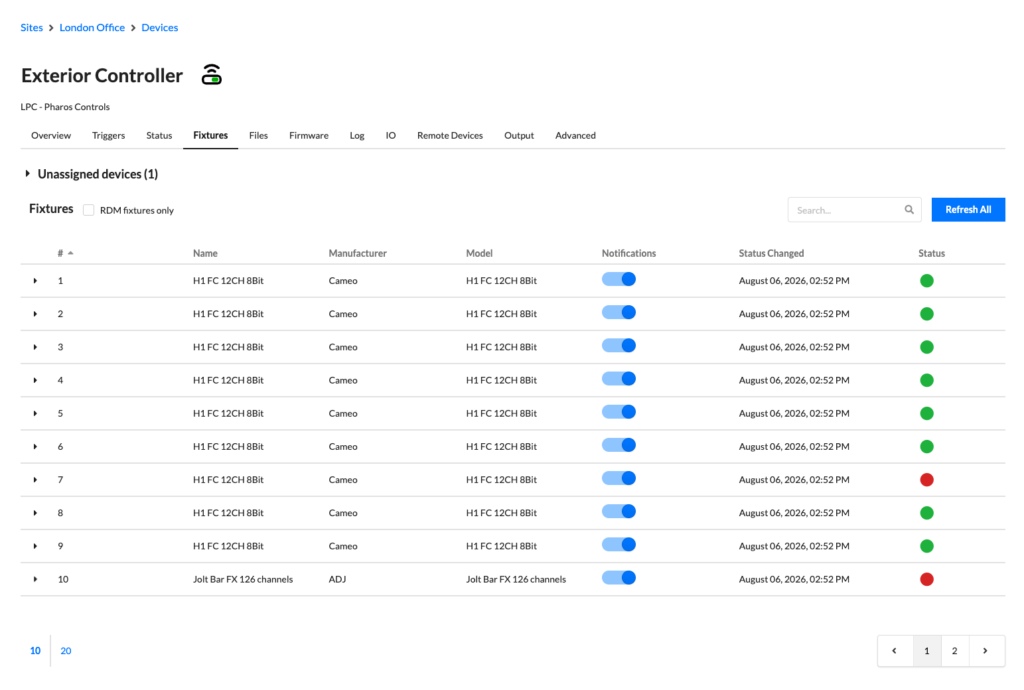
A fixture is an entry in your project file. An RDM device is a physical responder that answers a poll. Most fixtures are one device, but a fixture can contain several — which is why the table has two levels, and why a fixture can be partially offline.
Fixture status#
Each fixture carries one of four statuses.
| Status | Meaning |
|---|---|
| Online | Every RDM device in the fixture responded to the last poll |
| Partially Offline | Some of the fixture's RDM devices responded and some didn't |
| Offline | No RDM device in the fixture responded |
| Unassigned | A responder was discovered that isn't attached to a fixture in the project |
Status Changed gives the time of the poll that last moved a fixture between statuses, so a stale timestamp means stable rather than unmonitored.
- Unassigned devices
- A collapsed panel at the top of the page, appearing when a poll finds a responder that isn't in the project. It lists each one by Uid, Output and Manufacturer.
- RDM fixtures only
- The table lists every fixture in the project by default, including ones with no RDM UID configured that Cloud can't report on. Select this to hide them.
- Search
- Filters the list by fixture name.
- Refresh All
- Runs a full status refresh on this device, polling all of its RDM devices. It can take a few moments depending on how many fixtures are in the project.
- Notifications
- Set per fixture. If turned off, events from that fixture are left out of fixture status notifications entirely.
RDM devices within a fixture#
Select the arrow at the left of a fixture's row to expand it and list the RDM devices belonging to that fixture.
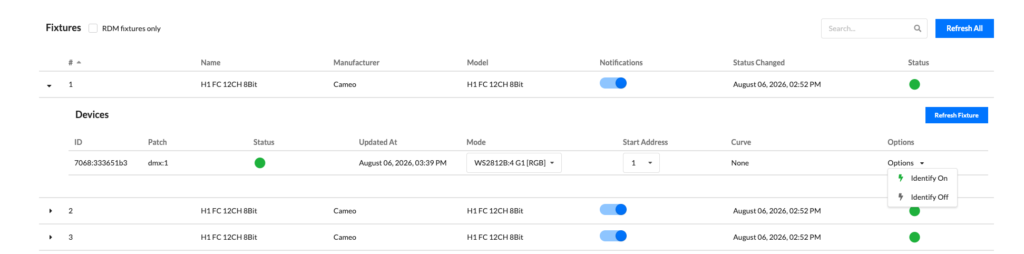
| Column | What it shows |
|---|---|
| ID | The device's RDM UID |
| Patch | Protocol and address, such as dmx:1 |
| Status | Last known status |
| Updated At | When the last poll updated it |
| Mode | Current operating mode — editable |
| Start Address | Current DMX start address — editable |
| Curve | Dimming curve — editable |
Refresh Fixture polls just this fixture, which is quicker than Refresh All when you are checking one repair.
Device options#
The Options menu on each row changes with the device's status.
When online#
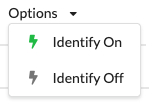
Identify On and Identify Off make the luminaire announce itself, so someone on site can find it.
When offline#
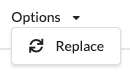
Replace opens the replacement tool with this device already selected as the one to replace.
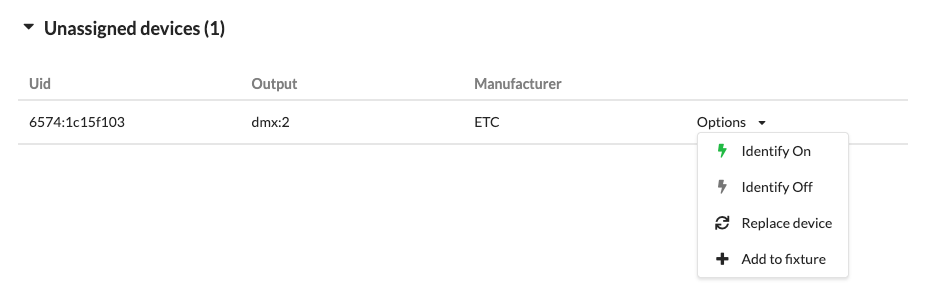
An unassigned device offers all four: Identify On, Identify Off, Replace device and Add to fixture.
Adding a new device#
Select a discovered Unassigned device option menu and select [[Add to fixture]]. In the following modal, select a target fixture and set parameters for the new device.
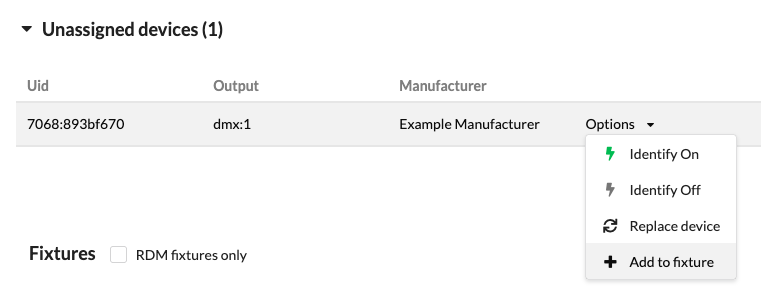
This device will then be added as part of the fixtures' devices and contribute to its online status.
Replace a faulty fixture#
You can swap out a missing or faulty fixture entirely from Cloud. Once the replacement hardware is connected, Cloud configures it and updates the existing programming to use it — no on-site commissioning, no new project upload.
1. Connect the replacement. Arrange for the new fixture to be installed and connected, which usually means an engineer attending site. They need do nothing beyond that; mode, start address and project assignment are all set remotely.
2. Refresh fixture status. Select Refresh All. The new fixture appears under Unassigned devices.
3. Open the replacement tool. Two routes, depending on whether the fixture you are replacing is showing as offline in the tabs below:
Use this route when the device being replaced is not showing as offline.
Expand Unassigned devices at the top of the page. The new fixture is listed there.
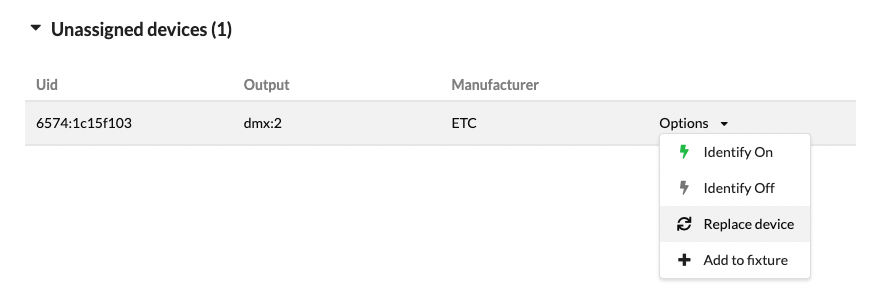
Select Options > Replace device, then choose the device to be replaced under step 1.
Use this route when the device being replaced is already showing as offline — it's quicker, and step 1 fills itself in.
Expand the fixture's row, find the offline device and select Options > Replace.

4. Set the incoming device's parameters. These are applied to the replacement: Mode, Start Address and Curve. Set them to suit the installation.

5. Review and commit. Step 3 spells out which RDM device is being unassigned and which is taking its place. Read it, then select Commit.

Schedule status refreshes#
Status is only as current as the last poll, so on most projects it's worth polling on a schedule rather than by hand. Polling is configured in the project file, so the steps differ by system.
Either way, results are published to Cloud as soon as the poll finishes and appear on the Fixtures tab at both device and site level.
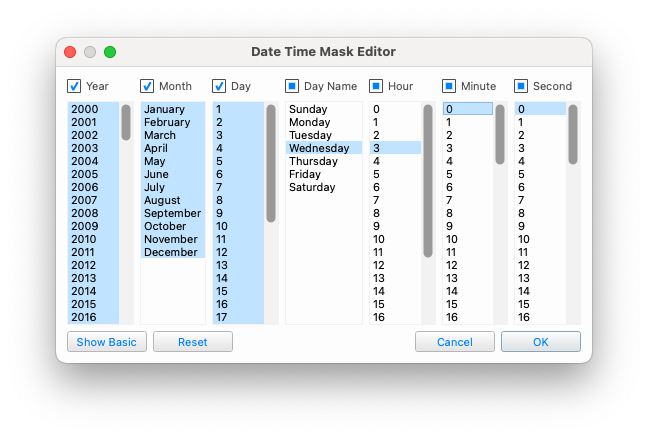
Create a Real Time trigger with a Start RDM Poll action.

Set the Date Time Mask Editor to the frequency you want. The example below fires at 3am every Wednesday: every year, every month, every day of the month, but only where the day name is Wednesday and the time is 03:00:00.
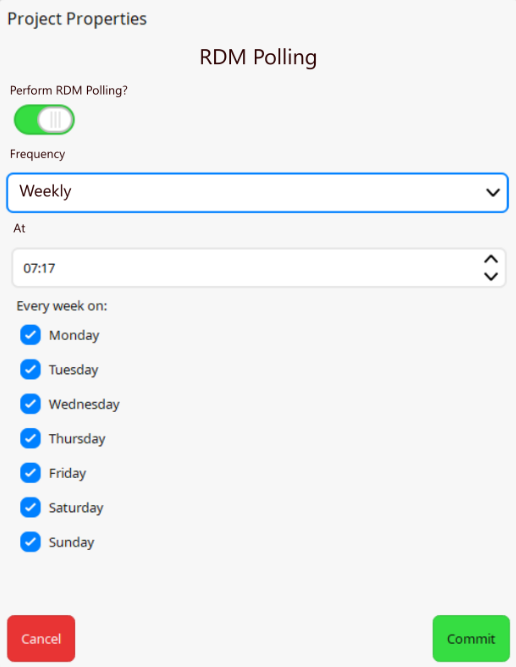
Go to Main Menu > Edit Project Properties... > RDM Polling.
Turn on Perform RDM Polling?, choose a Frequency and the time to poll At. A weekly frequency also lets you pick which days. Select Commit.
Get notified when a status changes#
Cloud checks each set of poll results against the last known status and raises notifications for anything that has changed.
The Notifications toggle on this tab sets whether a fixture is included at all. Everything else is per user, on the site's Settings tab: scroll to notifications and expand fixture status.
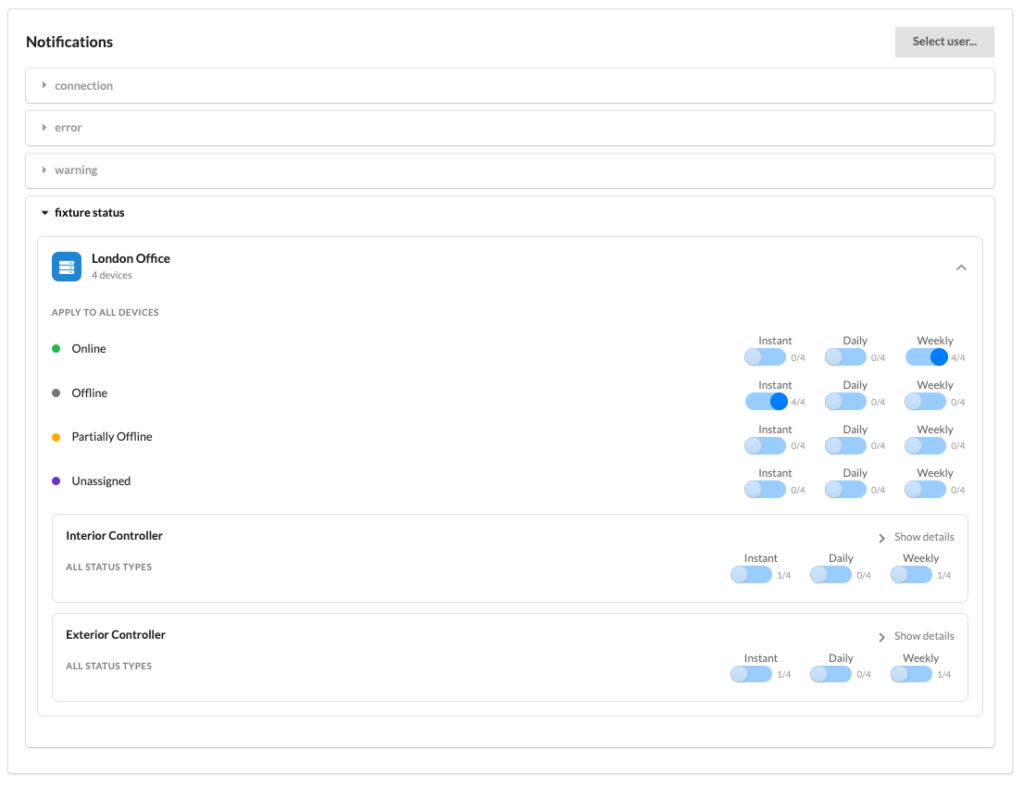
Each of the four statuses can be sent Instant, Daily or Weekly, set for
the whole site under APPLY TO ALL DEVICES or per device below it. The counts
beside each toggle — 4/4, 1/4 — show how many devices in the site that setting
currently covers, so a partial count means some devices have been set individually.
A common arrangement is instant alerts for Offline and a weekly summary for Online, which tells you about failures as they happen without a message every time something recovers.
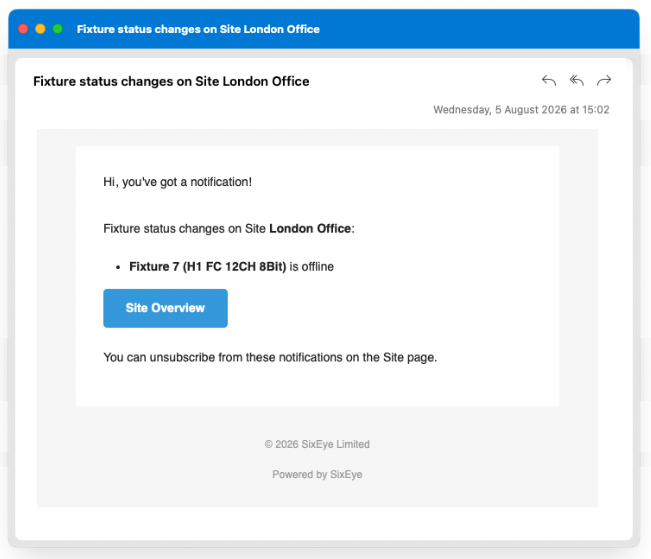
The next poll that finds an offline fixture then sends an email naming the fixture and linking back to the site.