Tasks#
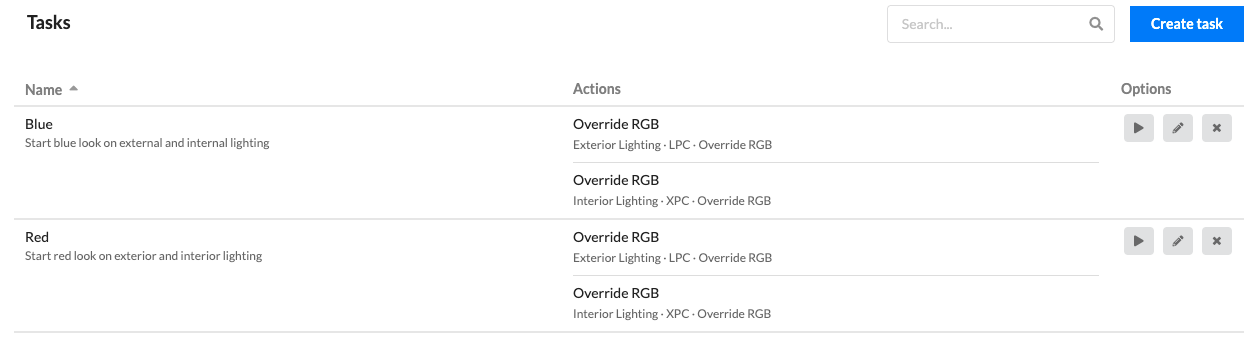
A Task is a collection of Actions that can run across several devices in a site.
Creating a Task#
-
On the Tasks tab, select Create task.

-
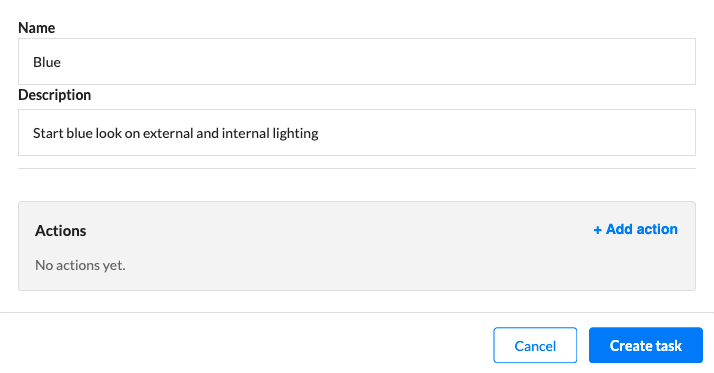
Give the Task a name and description. The name appears on the Tasks tab and anywhere else in Cloud where a Task can be run. The description appears only on the Tasks tab and is purely informational.
-
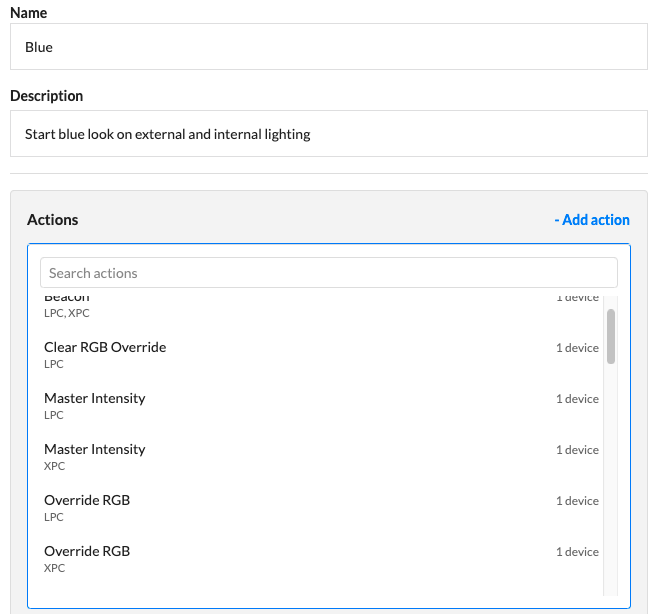
Select Add action and select the action type from the list. Here, each action type shows how many compatible devices exist in the site. Actions may appear to have the same functionality, but different Actions may target different device types. Only Actions which are compatible with the devices a user can view in the site are displayed.
-
From the menu, choose the action and the device or devices it runs on.
-
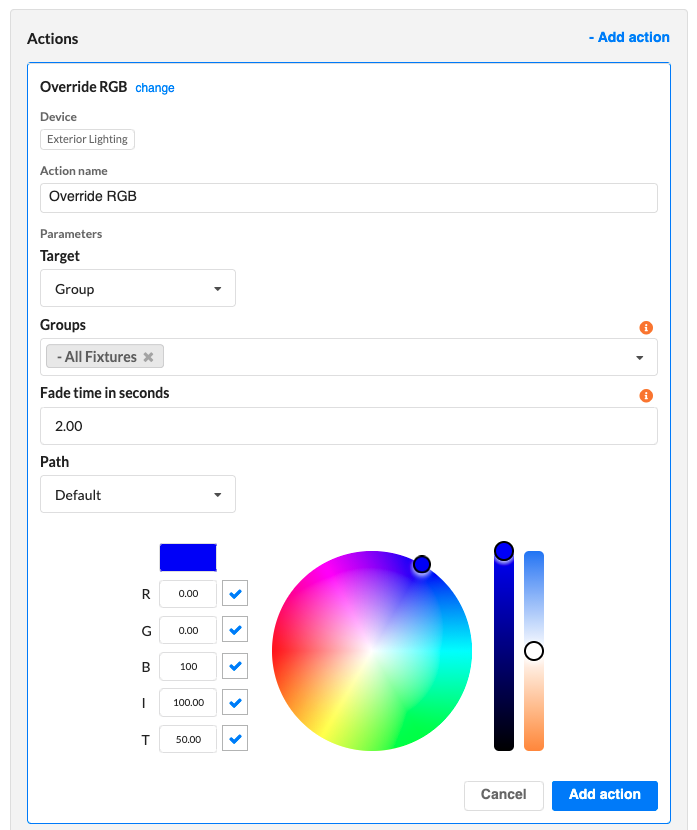
Configure the action. This will be different for each action type. This example shows overriding an RGB fixture on a device.
-
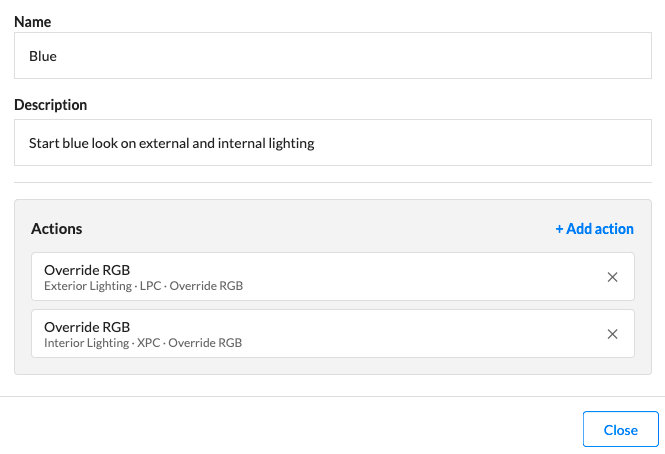
Select Add action. The Action appears in the Task. Add as many Actions to a Task as you need.
-
Select Create task and find the new Task in the Task table.
Important
If two or more devices run the same project file, you may not need a separate Action for each. But a Task that spans project files needs at least one Action per project.
Task options#
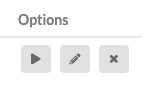
From the options section of the Tasks table, the following actions can be taken:
Running a Task#
Find the task you would like to run and select the run icon. Confirm in the confirmation modal. A notification appears in your browser if the task has been dispatched.
Tasks can also be run from Scheduling and from Control Panel.
Editing a Task#
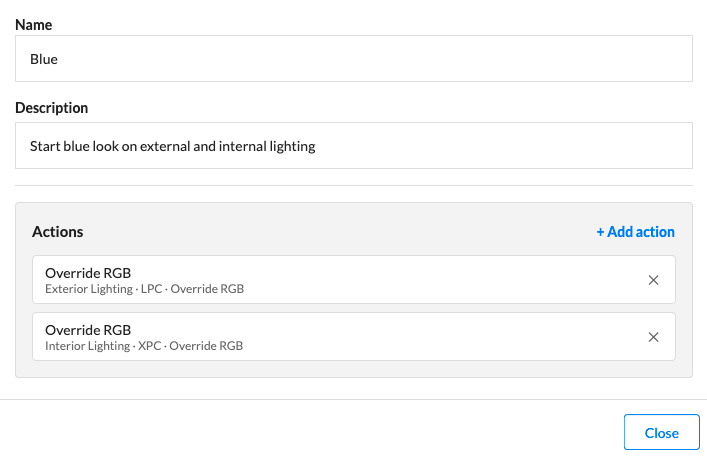
Select the edit icon in the options section of the Tasks table. Once here, changes to name, description and any actions are saved as they are made. Close the edit pop-over to stop editing. Actions can be added or removed.
Deleting a Task#
Find the task you would like to delete and select the delete icon. Confirm in the confirmation modal.
Deleting a Task is a permanent operation and cannot be undone.
Task compatibility#
Certain tasks are only compatible with certain devices. If a device ever has to be replaced, please ensure that the device type and firmware are the same. Tasks which are incompatible with a device are flagged here and cannot be run.
See Task Actions for every Action available and any compatibility notes.