Spaces#
Available onExpressAcuity Brands
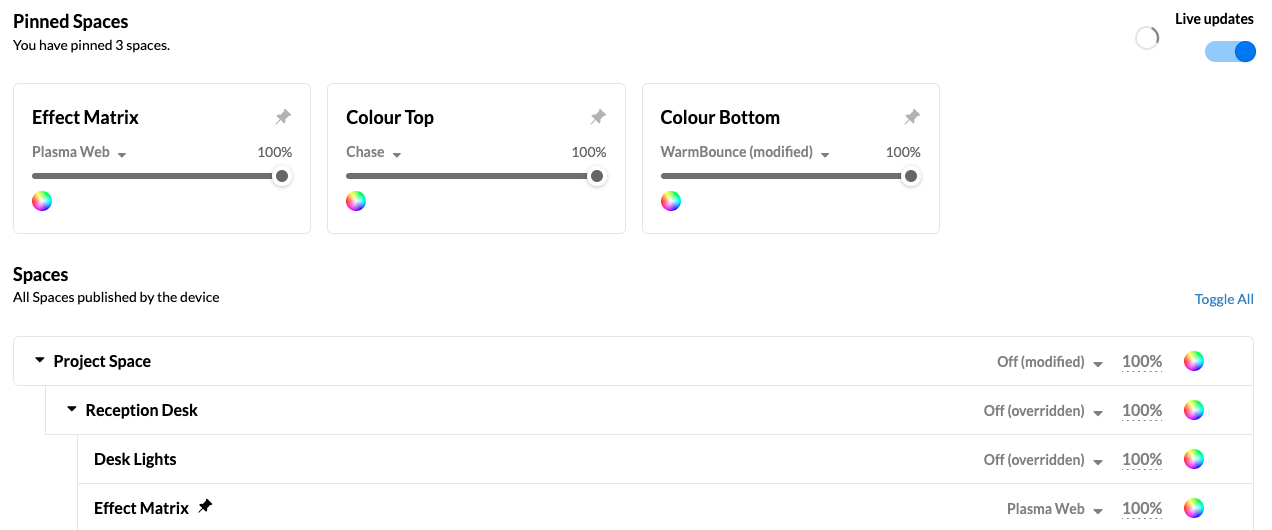
A device's Spaces can be viewed and overridden from this view. By default, live updates are always enabled, meaning the display here is showing exactly what the device is doing, and will update in real time as the Space-related information is adjusted.
Viewing Spaces#
Spaces are displayed in the same hierarchy as the device's project file. By default, spaces are collapsed, but can be expanded on a per-space basis using the expand icon to the left of each parent space name, or all can be expanded by selecting Toggle All.
Spaces can be pinned by selecting the pin icon in each space. Pinned spaces stay at the top of the tab with expanded controls for overrides. Pinned spaces are set for the site, not the user. Unpin a space by selecting the pin icon in a pinned space.
Override Spaces#
Each space can have the following changed via this interface:
Scene - Change which scene is active in a space
Intensity Master - Changes the space intensity master in a space
Colour Override - Override colour fixtures in a space to output a desired colour
Edits to the above can be made inline for each space, simply select the current property to queue up a change to be sent to the device. Multiple changes can be made at once. When all changes are ready, select to commit them to the device.
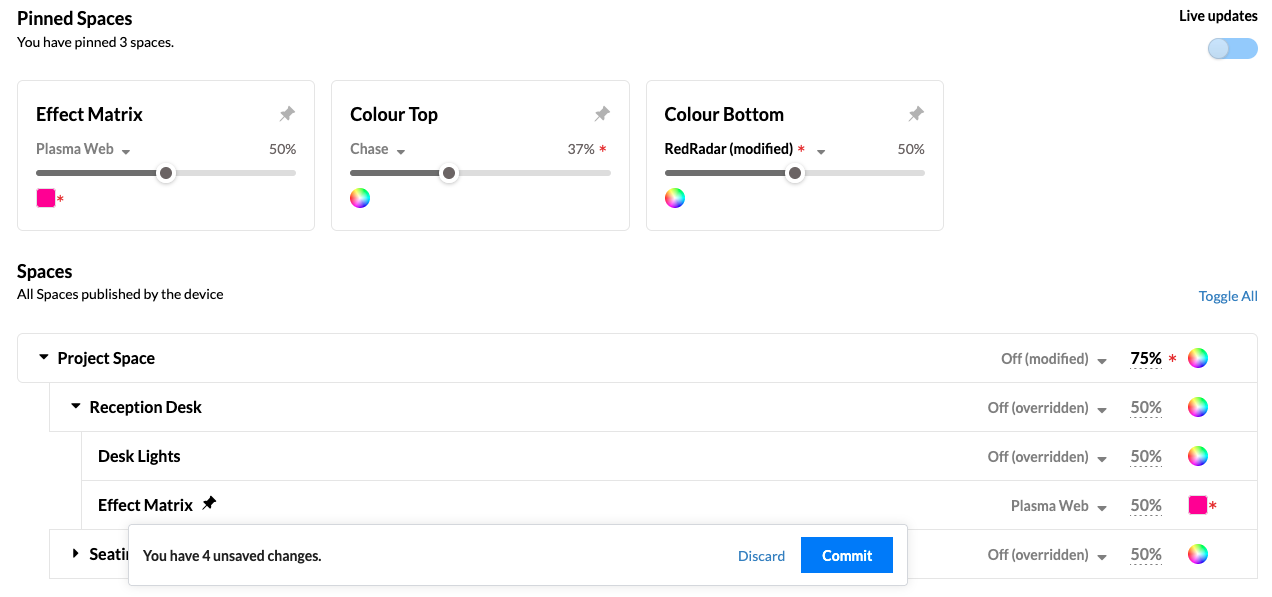
Edits are highlighted with bold text and an asterisk (*). Select Discard to drop all edits.