Site settings#
Contact details#
With the correct permissions, these can be edited in place - select the text to open the inline editor.
| Field | For |
|---|---|
| Primary Contact | Name of the contact for this site |
| Primary Contact Email | Email address of the contact |
| Primary Contact Phone | Telephone number for the contact |
| Commercial Contact Email | Person responsible for commercial arrangements |
| Subscription Contact Email | Person responsible for subscriptions |
| Technical Contact Email | Person responsible for technical information |
Any text is accepted, but accurate contact details are worth the effort - they are how we reach the right person about a site.
Notes#
A free-form notes field for the site, editable in place with the correct permissions.
Site location and time#
The site location determines the site's local time, which is what scheduled tasks run against. It must be set before Scheduling can be configured.
A new site starts centred on the Pharos office; the location is not set until you choose one.
- Navigate the map until the site's location is visible.
- Select the location.
- If the pin and the address preview look right, select the checkmark to accept.
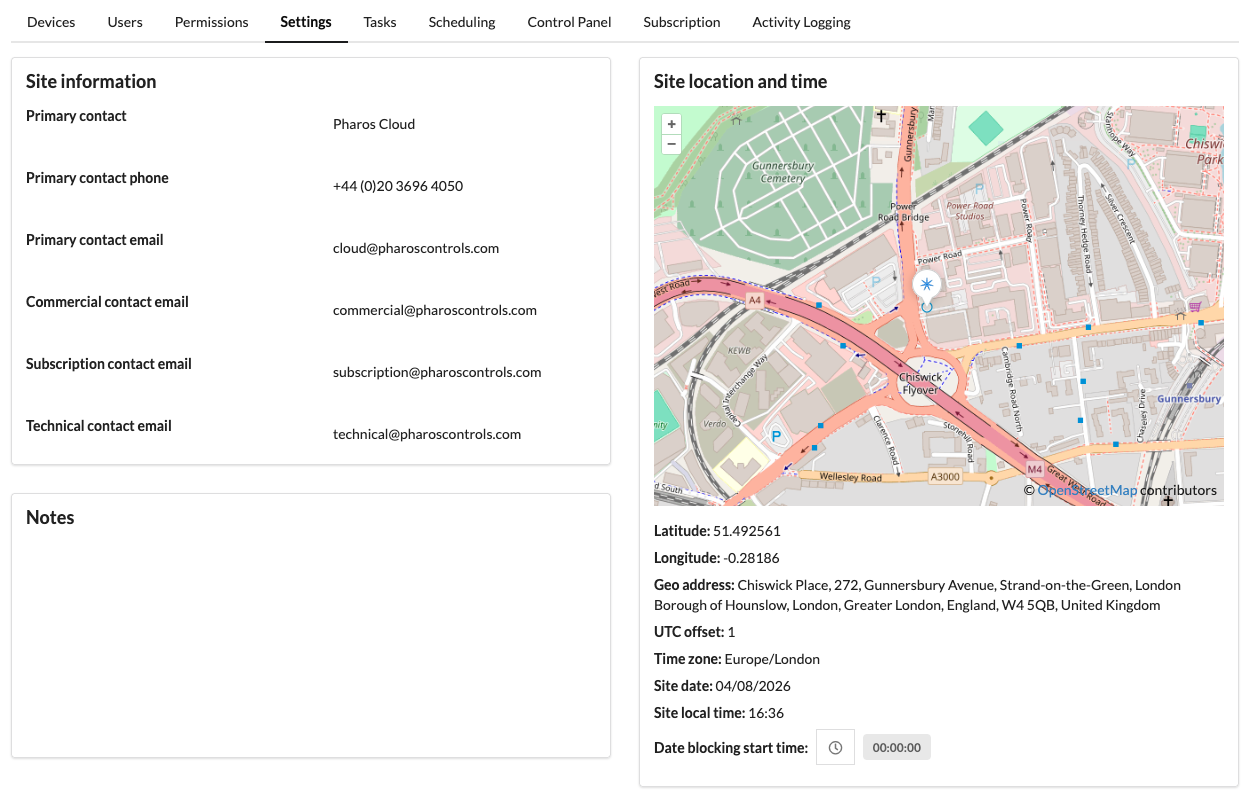
Once a location is set, Cloud calculates:
| Field | Notes |
|---|---|
| Latitude | |
| Longitude | |
| Geo address | Derived from the coordinates on the Cloud servers. It need not be exact for the site to work, but closer is better |
| UTC offset | Calculated from the coordinates |
| Time zone | Calculated from the coordinates |
Enable 2FA enforcement#
If 2FA is enabled for a Portal, site owners can choose whether all users in this site should be forced to use 2FA. If a user is already using 2FA, then they will sign in as usual. Users without 2FA setup will be forced to set up 2FA when they next sign in.
A user only has to be part of one site which forces 2FA for this to be applied to them.
Notifications#
Three types are available. Each user chooses which to receive, either per device or across every device in the site. Notifications are delivered immediately.
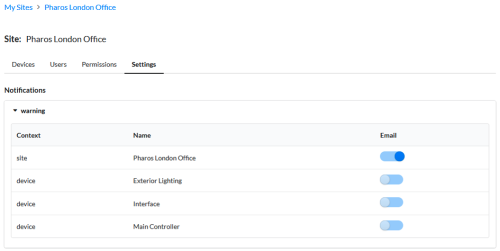
Four types are available. Each user chooses which to receive, either per device or across every device in the site.By default the user is editing their own settings. Site owners can optionally set other users' notifications by selecting them in the Select user... popover.
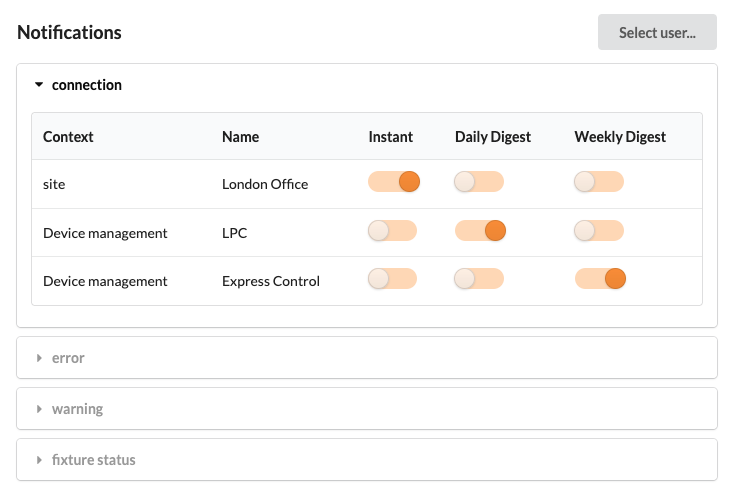
| Type | Fires when |
|---|---|
| Connection | A device changes online status (tolerant of brief outages) |
| Warning | A device raises a warning notification |
| Error | A device raises an error notification |
| Fixture Status | A device raises a fixture status related change for a device |
The digest schedule is set per user, so different users in the same site can receive notifications at different intervals.
Instant notifications are sent as soon as they are processed. Whereas daily and weekly are bundled together into a single notification sent at the period specified.