User options#
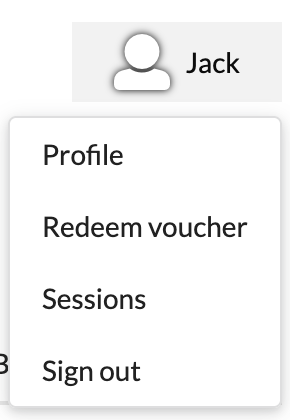
To access the user Options, select the user icon at the top right of any page.
Profile#
The user profile page contains all of the settings specific to your user account.
Details#
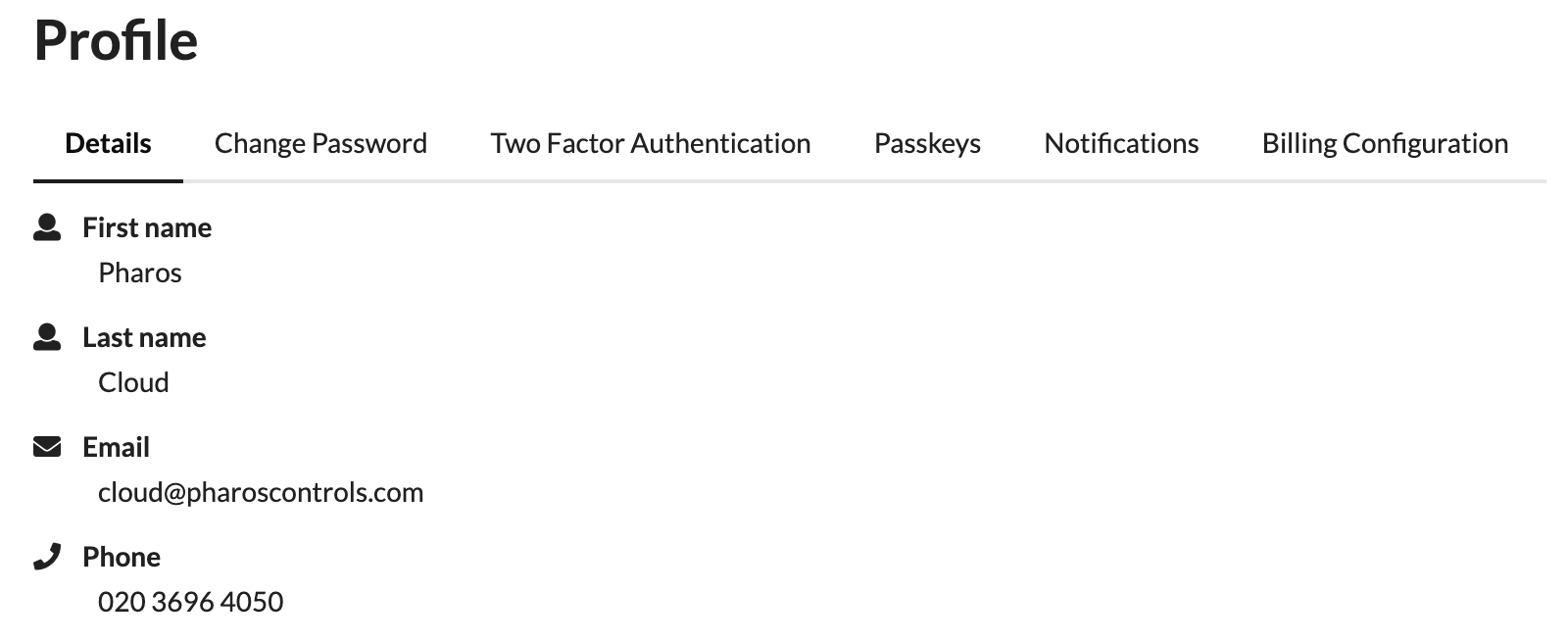
View and edit your First Name, Last Name, Email and Phone number here. Select the text to edit it directly.
Note
Changing your email address will keep all active sessions, but new sign-ins must use the new email address.
Change password#
Input your current password and a new password. If validation passes, your password will be changed immediately.
Two-factor authentication#
Here you can set up two-factor authentication for your user. If you have not set up two-factor authentication, you will be prompted to do so.
-
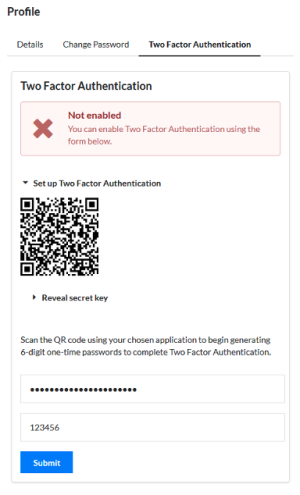
Scan the QR code presented in an authenticator app, Proton Authenticator for example.
-
The app then shows a six-digit code, which refreshes regularly.
- Enter your password and a recent code.
-
Select Submit.
-
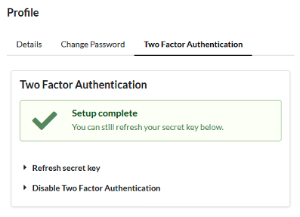
Next time you sign in, you will be prompted for a fresh code.
If two-factor authentication is already set up, you will see options to:
Refresh secret key#
Follow the steps above to generate a new secret key while keeping 2FA enabled on your account. Useful if moving to a new mobile device or authenticator app.
Disable two-factor authentication#
Select to disable two-factor authentication for this account. If 2FA is enforced in the portal or by a site you are a user in, you will be prompted to set up 2FA again the next time you sign in.
Passkeys#
A passkey lets you sign in using your device's fingerprint reader, face recognition, or screen lock instead of a one-time password.
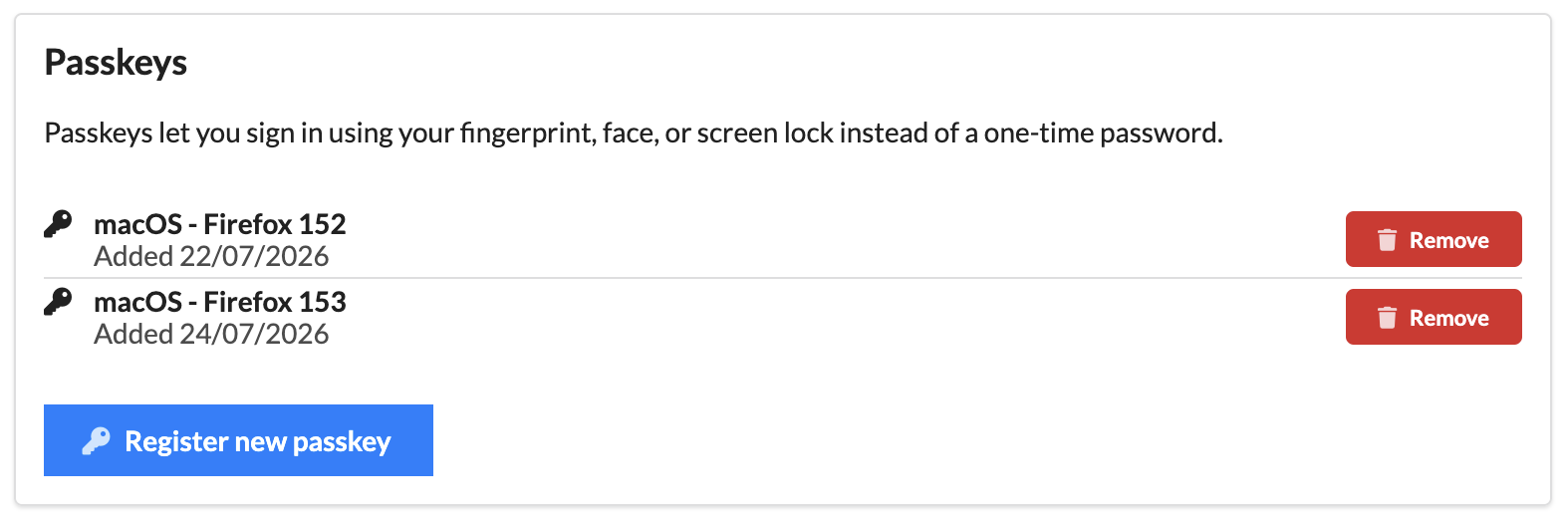
Passkeys are tied to the browser and device you register them on, so register a separate passkey for each browser you sign in from. Each entry in the Passkeys panel shows the operating system and browser it was registered on, and the date it was added.
Register a passkey#
- Select Register new passkey.
- Follow the prompts from your browser or operating system to confirm with your fingerprint, face, or screen lock.
The passkey is added to the list, named after the operating system and browser you registered it on.
Remove a passkey#
Select Remove next to the passkey you want to delete. Remove a passkey if you no longer use that browser or device, or if the device is lost.
Notifications#
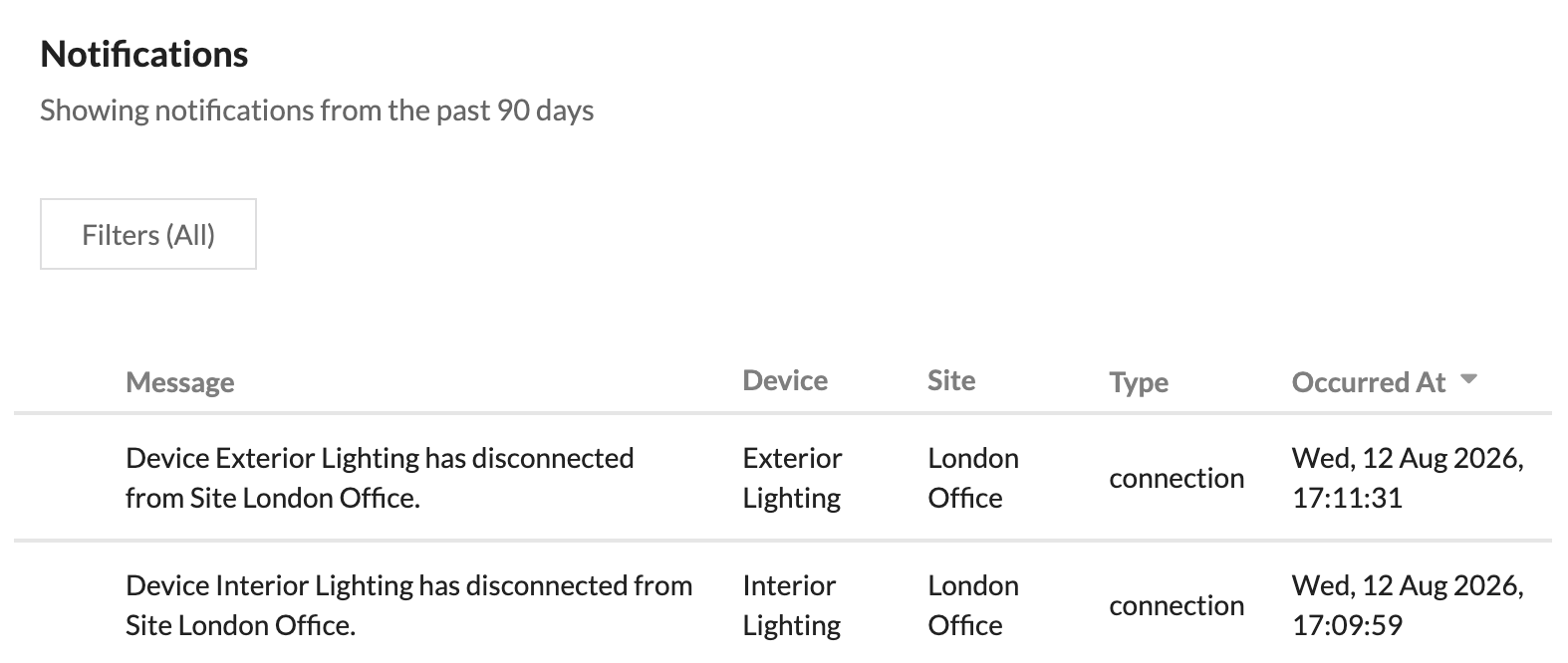
See notifications sent to you over the last 90 days. These can be filtered to specific sites and devices.
Billing configuration#
Adjust your default billing options and currency for when purchasing vouchers.
Redeem voucher#
Starts the process of redeeming a voucher for a new site. See more in vouchers.
Sessions#
A session is created each time you sign in, and stays valid until it expires or is invalidated. The Sessions panel lists your sessions so you can check where your account is signed in and sign out of devices you no longer use.
| Column | Description |
|---|---|
| User agent | The browser and operating system the session was created from. |
| Created | The date you signed in. |
| Last used | The date the session was last active. |
| Expires | The date the session expires and you need to sign in again. |
| Status | Current Session for the session you are using now, or Active for a session that is still valid. |
| Options | Actions for the session. |
By default the list shows only current and active sessions. Turn on Show expired/invalidated to include sessions that are no longer valid.
Invalidate a session#
To sign out a single session, select Options on its row and choose the invalidate action.
To sign out every session at once, select Invalidate All.
Sign out#
Immediately sign out and invalidate your current session.