User permissions#
The site owner controls what every other user in the site can see and do. A user can only interact with a feature if their permissions allow it, and permissions can only be changed by someone holding Set Permissions. A site owner can always edit permissions.
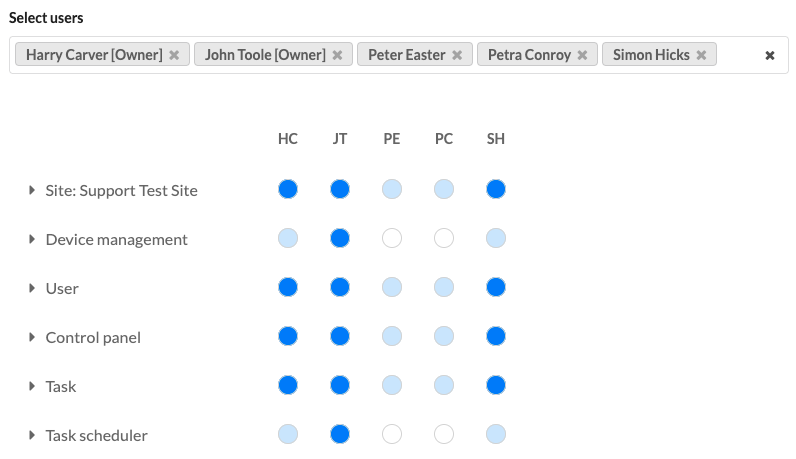
Setting permissions#
- Open the Permissions tab in the site.
- If the user does not already appear as a column, use Select users… to find them in the list.
- Set each permission for each user. Selecting a white circle turns it blue and grants the permission; selecting a blue circle turns it white and removes it.
Permissions apply to the current site, all devices within a site (both current and future) and specific device permissions.
Permissions can be copied between users by selecting the user's initials at the top of the permissions column.
Site permissions#
| Permission | Allows |
|---|---|
| Site:View: All | View the site and all its attributes |
| Site:Edit: All | Edit all attributes of the site |
| Site:Delete | Delete the site |
| Device management: Add | Add a device to the site |
| Device management: Firmware | Manage firmware for devices in the site |
| User: View | View all users in the site |
| User: Add | Add users to the site |
| User: Delete | Remove users from the site |
| Control Panel: View | View Control Panel |
| Control Panel: Edit | Edit Control Panel |
| Task: Execute | Fire tasks |
| Task: View | View the list of tasks |
| Task: Add | Create tasks |
| Task: Edit | Edit existing tasks |
| Task: Delete | Delete tasks |
| Task scheduler: Calendar event view | View the calendar widget of scheduled tasks |
| Task scheduler: Calendar event edit | Disable events on the calendar widget of scheduled tasks |
| Task scheduler: View | View the list of task schedulers |
| Task scheduler: Add | Create a task scheduler |
| Task scheduler: Edit | Edit a task scheduler |
| Task scheduler: Delete | Delete task schedulers |
| Schedule: View | View schedules attached to task schedulers |
| Schedule: Add | Create schedules to associate with task schedulers |
| Schedule: Delete | Delete schedules |
| Schedule: Edit | Edit schedules |
| API Key management | View, create, edit and delete API keys in the site |
| Set Permissions | Set permissions for other users in the site |
| Owner | All site and device view permissions, plus Set permissions for every user |
Device permissions#
Set permissions for a user for all devices in a site.
| Permission | Allows |
|---|---|
| View: All | View all devices |
| Device: Replace | Replace all devices in the site |
| Device: Delete | Remove all devices from the site |
| Fixtures: View | View all fixture Status information for all devices |
| Fixtures: Edit | Adjust fixture Status information for all devices |
| Fixtures: Identify | Use Identify functionality for fixture Status for all devices |
| Setting Beacon | Toggle the beacon on all devices |
| Action reset | Reset all devices in the site |
| Information | View all device information - basic info, overview, status |
| Control | View and fire all triggers |
| Maintenance | View and perform actions that affect all devices - log level, date and time, watchdog, format storage |
| File: View | View all files held in Cloud for all devices |
| File: Transfer | Transfer a file from Cloud to all devices |
| File: Add | Add a file to all devices in Cloud |
| File: Delete | Delete a file from all devices in Cloud |
| Set Permissions | Set other users' permissions for all devices |
Each device then has its own permissions table which follows the same structure as the permissions listed above. It is recommended to use All Device permissions where possible.