Vouchers#
Some or all of the features in this topic are enabled on a per-portal basis.
The primary way to renew a site's subscription in Pharos Cloud is by using vouchers. Vouchers are able to be self-served and paid for by credit or debit card.
Pricing disclaimer
Price values in this document are for example purposes only and do not necessarily reflect actual Pharos Cloud pricing.
Purchasing vouchers#
The voucher purchasing workflow is designed to be a straightforward and flexible way of making the purchase you need to.
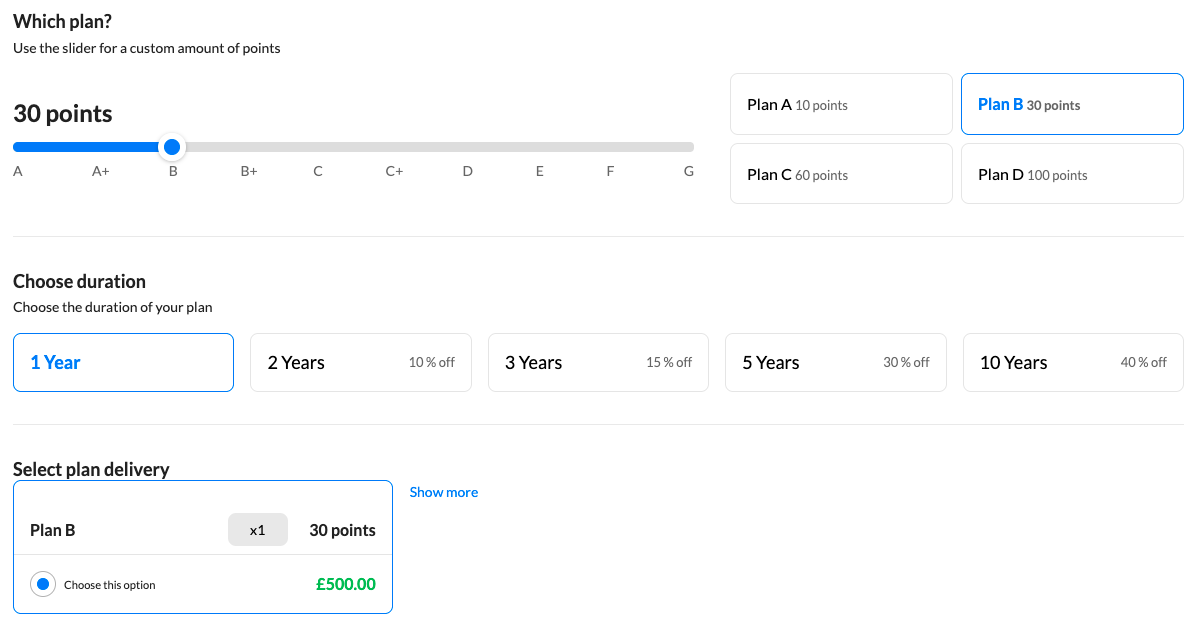
Select a plan#
Site subscriptions in Pharos Cloud are sold as plans, named Plan A to Plan G, with intermediate Plan A+, B+ and C+ levels. Each connected device is worth a number of points, and plans further along the alphabet support more points — and so more devices.
There are two ways to work out which plan a site needs:
- Open the site's subscription tab and check Required Site Plan. This also shows how many points the site's connected devices currently use.
- Add up the points for your devices using the supported devices reference.
Once you know the level you need, set it with the points slider or the quick plan selection buttons.
Plan point thresholds
| Plan | Maximum points |
|---|---|
| Plan A | 10 |
| Plan A+ | 15 |
| Plan B | 30 |
| Plan B+ | 38 |
| Plan C | 60 |
| Plan C+ | 70 |
| Plan D | 100 |
| Plan E | 150 |
| Plan F | 200 |
| Plan G | 250 |
Select a duration#
Choose how long you'd like a subscription plan to last. You'll see the discount levels presented for multi-year plans.
Select plan delivery#
Most projects require a single plan. In most cases the default selection here is fine.
If your project consists of multiple sites, you can choose to split a subscription purchase across multiple, smaller plans, each delivered as its own voucher. Select Show more to see what split delivery options are available for the selected plan. These options update live as the plan is adjusted. Only the plan is split, never the duration.
Add to cart#
Check the summary at the bottom of the page to ensure you've made the correct selection for your plan. Choose which currency you'd like to pay in. Multiple purchases can be added to the cart at once.
Checking out#
Once all of your plans are added to your cart, you can follow the checkout process. At any point during this process you can select the ? in the top right for a description of your current step.
During this process you'll need valid address and card details. You can optionally provide VAT numbers and invoice references during the process.
Once your payment has processed, you will be taken to your purchase history where you will be able to see your voucher and copy it. As well as being sent an automatic invoice for your purchase, one can also be downloaded here from the options drop down of each order.
Important
Vouchers are only valid for the portal they are purchased in.
Redeeming a voucher#
Depending on if you have an existing Pharos Cloud account or if the site you want to redeem the voucher against already exists, there are different ways of redeeming a voucher:
- Go to cloud.pharoscontrols.com.
- On the sign-in page, select Redeem Voucher for a new Site.
- Paste the voucher in and validate it.
- Check it provides the plan and length you need.
- Name the new site.
- Give the email address of the site's first user. It can be an existing Cloud user, and they receive the Owner permission.
- Confirm and redeem.
- Go to cloud.pharoscontrols.com and sign in.
- Select the user menu and choose redeem voucher
- Paste the voucher in and validate it.
- Check it provides the plan and length you need.
- Name the new site.
- Give the email address of the site's first user. This will default to the currently logged in user.
- Confirm and redeem.
- Go to the subscription tab for the site.
- Locate the Redeem voucher section.
- Paste the voucher in and validate it.
- Check it provides the plan and length required and confirm the projected renewal date and plan.
- Redeem the voucher.
A voucher can only be redeemed once. Please see Subscription FAQs for more information about subscriptions.