Scheduling#
Scheduling runs tasks at times you specify, much like built-in scheduling - but across different devices and projects at once. Task schedulers can be created by anyone with the right permissions, from a desktop browser or a mobile device, without touching the project file.
Important
Devices store no scheduling information locally. Schedules are sent to a device as they are due, so a device must have an active connection to Cloud for its schedules to run.
Cloud Scheduling can be used alongside Real Time triggers in a project file. There is no priority difference between the two, which is worth bearing in mind when programming the project.
Scheduling uses the site's local time, not the device's, so the site location must be set first - see Site settings.
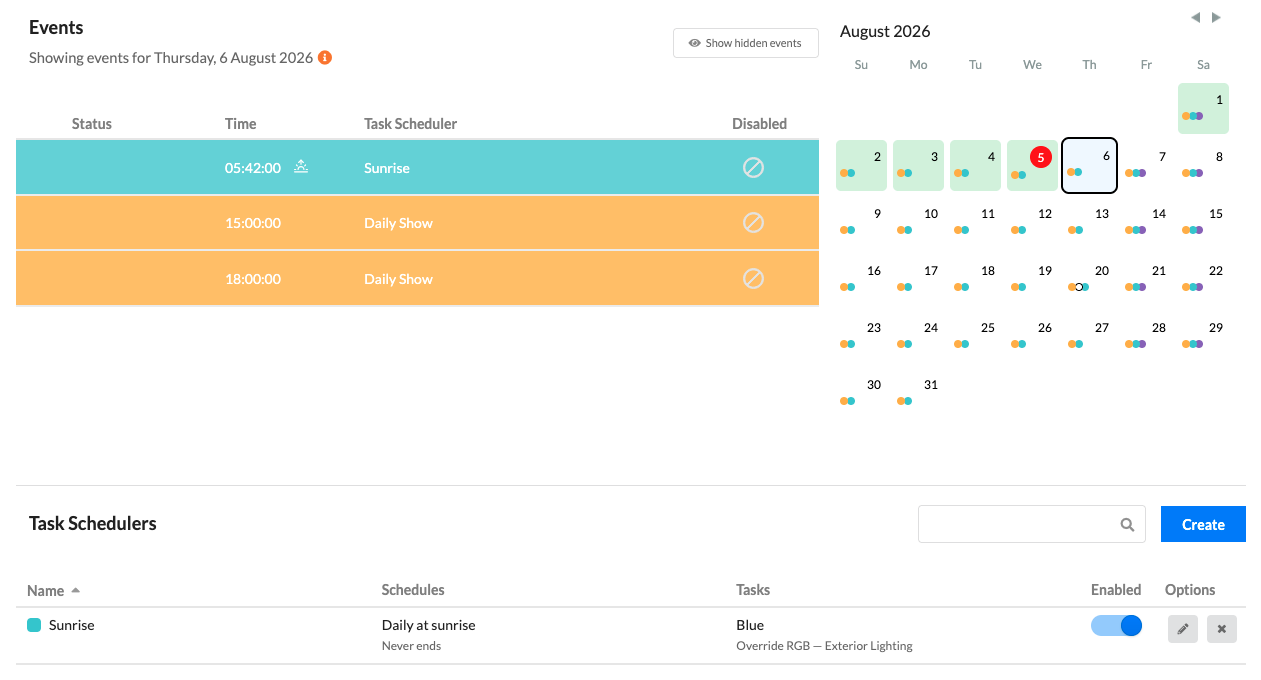
The Events view at the top of the Scheduling tab shows what is scheduled to happen on a given site. Users can select to quickly disable a given schedule instance directly in the calendar view.
Important
The calendar view shows occurrences up to 400 days beyond a task scheduler's start date, with new ones added every 30 days. A scheduler that never ends keeps running even beyond the range the calendar displays.
Creating a task scheduler#
Select Create above the task schedulers table.
Step 1 - what to run#
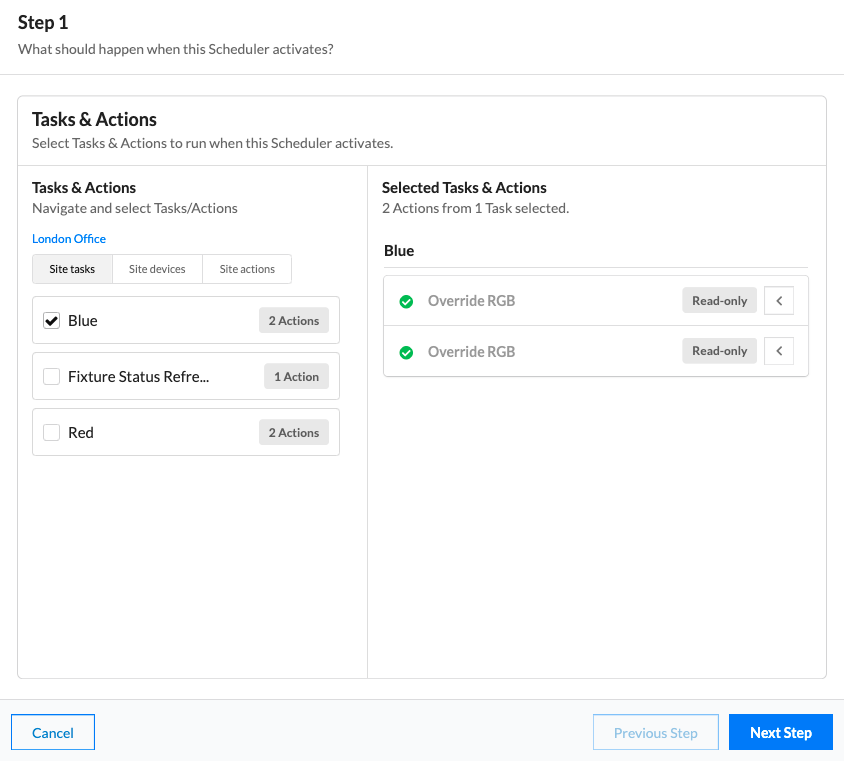
Choose the tasks and actions the scheduler will run.
Existing tasks are added by selecting them in the Tasks view; they run as normal when the scheduler fires.
Add actions instead where no existing task covers what you need. Actions added here are put into a new task when the scheduler is created - rename that task using the hashed-line box above the actions.
Choose the device the action runs on from the drop-down.
Step 2 - when to run#
Recurrence.
| Option | Behaviour |
|---|---|
| None | No schedule configured yet; add one later |
| Specific dates | Pick each date individually |
| Daily | Days between each recurrence |
| Weekly | Weeks between recurrences, a start date, and which weekdays to include |
| Monthly | Months between recurrences and a start date. Advanced Options handle special cases |
| Yearly | Years between recurrences and a start date. Advanced Options handle special cases |
Daily, weekly, monthly and yearly recurrences each end in one of three ways:
| Ending | Behaviour |
|---|---|
| On a date & time | Nothing runs on or after that moment |
| After n occurrences | Counts occurrences, not days - three times a day is three occurrences |
| Never ends | Runs indefinitely |
Times. Four ways to add them:
| Method | Behaviour |
|---|---|
| Simple | A specific time. Select confirm to add it - multiple can be added |
| Recurring | An interval plus start and end time. The preview shows every time about to be added |
| Astronomical | Sunrise or sunset with an optional offset. Maximum of five astronomical times per schedule |
| Time Mask | Specify hours, minutes and seconds; every matching time is previewed |
Remove a time with the x in selected times, or use Clear times.
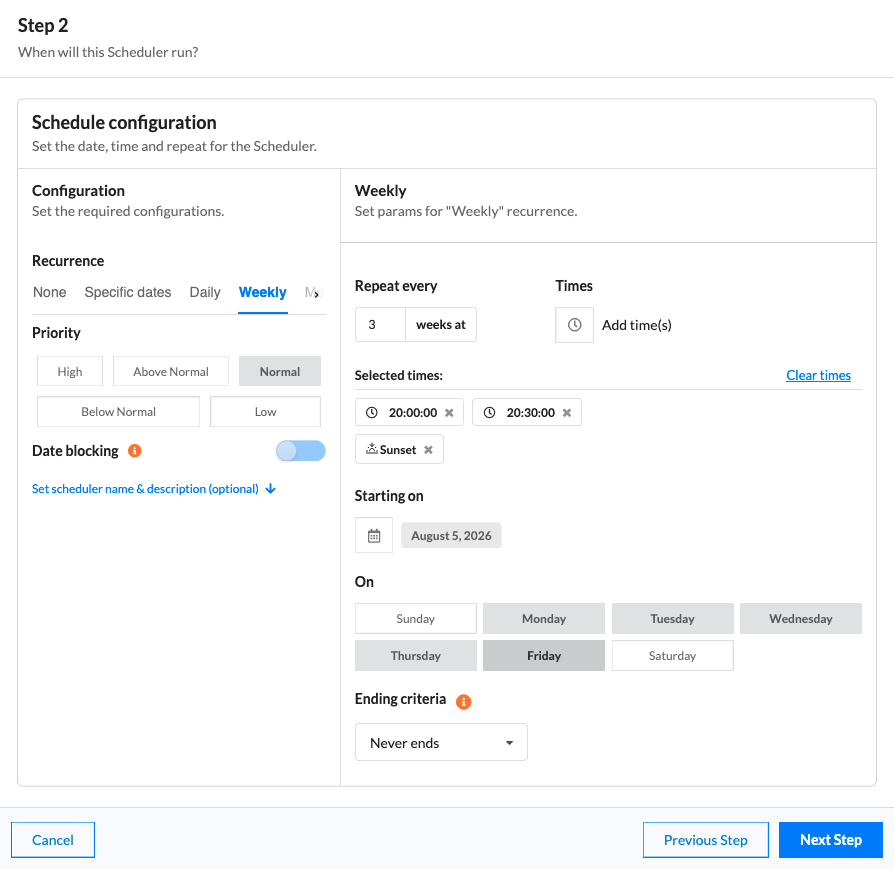
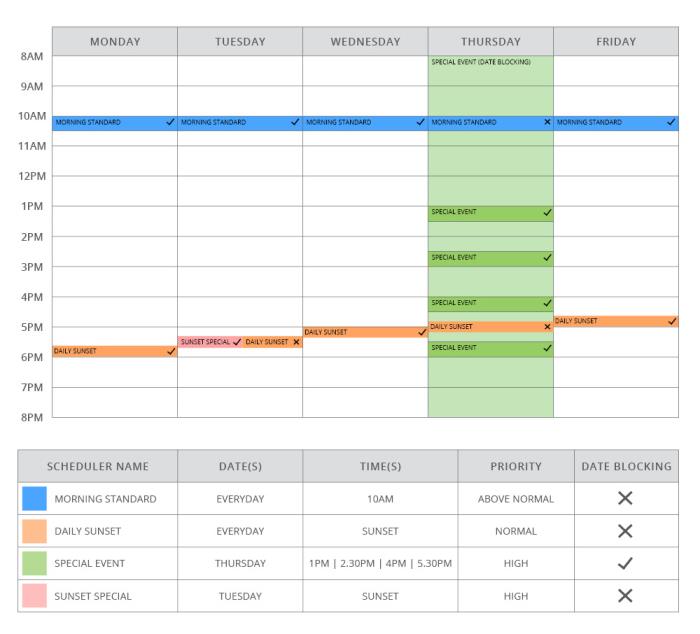
Priority and date blocking. Priority affects only other task schedulers, never timeline priorities in the controller's programming, and applies only to exact time matches. Date blocking prevents any lower-priority occurrence from running at any time on a date on which this scheduler occurs. With date blocking off, priority only affects occurrences with exactly the same start time.
See an example of date blocking
Step 3 - name it#
Set the scheduler's name, description and occurrence colour. A preview of the actions, dates and times is shown here. Select Create Scheduler.
Cloud then creates the scheduler, a new task if you specified actions, and a default schedule attached to it. Use the events calendar to see active occurrences.
Editing task schedulers#
Select the edit button for a task scheduler in the Options section.
- Immediately edit the name and settings of a task scheduler
- Add new, edit or delete schedulers
- Add new, edit or delete tasks
Deleting task schedulers#
Select the delete button for a task scheduler in the Options section. Confirm the deletion in the confirmation modal. This cannot be undone.
Task schedulers can be disabled with the inline toggle switch.